WhatsApp has evolved far beyond simple text messaging. With over 2 billion users worldwide, the platform continues to introduce features that enhance group communication, making it more efficient and engaging. One of the most valuable additions in recent years is the polling feature, which enables you to gather opinions, make informed group decisions, and coordinate plans without the need for endless back-and-forth messages.
 Join WhatsApp Channel
Whether you’re planning a team outing, choosing a restaurant for dinner, or making important project decisions, WhatsApp polls streamline the decision-making process. This comprehensive guide will walk you through everything you need to know about creating and managing polls in WhatsApp.
What Are WhatsApp Polls?
WhatsApp polls are interactive questions with multiple-choice answers that you can send in group chats or individual conversations. Group members can vote on their preferred options, and everyone can see the real-time results. This feature eliminates the chaos of trying to coordinate responses through multiple messages, making democratic decision-making transparent and straightforward.
Polls are available on both WhatsApp for mobile devices and WhatsApp Web, although the creation process differs slightly between platforms. The feature is available for both personal and business accounts, making it versatile for a wide range of use cases.
Why Use WhatsApp Polls?
Before diving into the how-to, it’s worth understanding why polls are so valuable:
Efficiency: Instead of reading through dozens of individual responses, you get organized results at a glance. Everyone’s opinion is captured in one place, making it easy to see the group consensus.
Engagement: Polls encourage participation from group members who might not otherwise speak up. The quick tap-to-vote format is far less intimidating than typing out a response, leading to higher participation rates.
Transparency: All votes are visible to group members, ensuring everyone knows where the group stands. This openness prevents confusion and helps build consensus around decisions.
Time-saving: Make decisions faster without lengthy discussions. Polls are ideal for straightforward questions that require quick feedback from multiple people.
How to Create a Poll on WhatsApp Mobile
Creating a poll on your smartphone is straightforward. Here’s the step-by-step process:
Step 1: Open Your Chat
Launch WhatsApp and navigate to the group chat or individual conversation where you want to create the poll. While polls work best in group settings, you can also create them in one-on-one chats.
Step 2: Access the Attachment Menu
Tap the plus icon or paperclip icon (depending on your device) located next to the message input field. This opens the attachment menu where you’ll find various sharing options.
Step 3: Select Poll Option
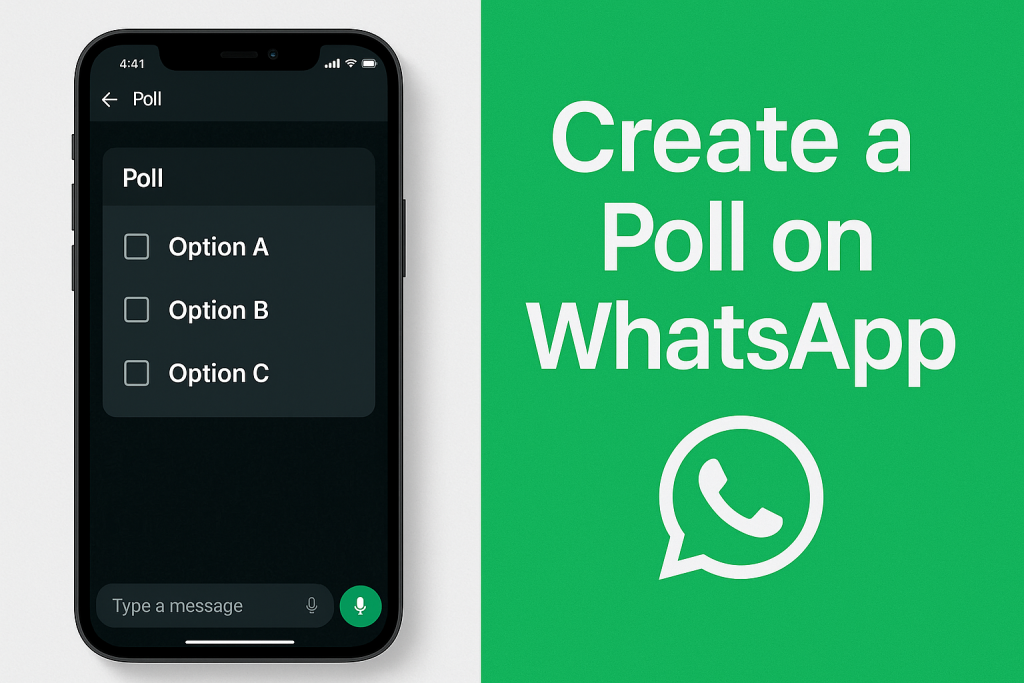
Look for the “Poll” option in the attachment menu. On iOS devices, you may need to scroll through the options to find the desired setting. On Android, it’s typically visible immediately. Tap on this icon to begin creating your poll.
Step 4: Write Your Question
In the question field at the top, type the question you want to ask. Be clear and specific to avoid confusion. Good poll questions are concise and unambiguous. For example, instead of “What do you think?”, ask “Which restaurant should we choose for Friday dinner?”
Step 5: Add Answer Options
You’ll see fields for adding options. WhatsApp automatically provides spaces for several options, but you can add up to 12 choices. Tap each field and type your answer options. Make sure each option is distinct and covers the likely responses.
If you need more than the default number of options, tap “Add option” to create additional choices. To remove an option, tap the minus or delete icon next to it.
Step 6: Configure Poll Settings
WhatsApp offers a practical setting called “Allow multiple answers.” If you toggle this on, participants can select more than one option. This is helpful for questions like “Which days work for you this week?” where people might have multiple available times.
Leave this option off if you want each person to choose only one answer, such as for “Where should we meet?”
Step 7: Send Your Poll
Once you’re satisfied with your question and options, tap the “Send” button. Your poll will appear in the chat immediately, and group members can start voting right away.
How to Create a Poll on WhatsApp Web
If you prefer using WhatsApp on your computer, the process is similar but adapted for desktop use:
- Open WhatsApp Web in your browser or launch the WhatsApp desktop application
- Select the group chat or conversation where you want to send the poll
- Click the paperclip or plus icon next to the message input box
- Choose “Poll” from the dropdown menu
- Enter your question in the designated field
- Add your answer options in the provided spaces
- Toggle “Allow multiple answers” if needed
- Click “Send” to share the poll with the chat
The desktop interface provides a larger screen for typing, which some users find more convenient when crafting detailed poll questions or multiple options.
Best Practices for Creating Effective Polls
To get the most out of WhatsApp polls, follow these guidelines:
Keep Questions Clear: Avoid ambiguous wording that could confuse voters. Your question should have one clear interpretation.
Limit Options Sensibly: While you can add up to 12 options, too many choices can overwhelm participants. Aim for 3-6 options when possible.
Use Polls for Informed Decisions: Polls are most effective for straightforward choices. Complex decisions requiring discussion aren’t suited for simple voting.
Give Context When Needed: Sometimes a brief message before the poll helps participants understand what they’re voting on. Don’t assume everyone has full context.
Set Deadlines: Send a message indicating when you need responses by. This creates urgency and ensures you get results in time to act on them.
Follow-up on Results: Once voting concludes, announce the decision and outline the next steps. Don’t leave people wondering what happens next.
Viewing and Managing Poll Results
After sending your poll, you can monitor responses in real-time. Each option shows the number and percentage of votes it received. Tap on any option to see precisely which group members voted for it. This transparency helps ensure everyone’s voice is heard and prevents disputes about outcomes.
Unfortunately, WhatsApp doesn’t currently allow you to edit a poll after sending it. If you made a mistake, you’ll need to delete the poll and create a new one. You also cannot close a poll to prevent further voting, so be sure to communicate clearly about voting deadlines.
Creative Uses for WhatsApp Polls
Beyond basic decision-making, polls can serve many purposes:
- Event Planning: Coordinate meeting times, choose venues, or decide on activities
- Team Feedback: Gather quick opinions on project directions or priorities
- Social Planning: Let friends vote on movies, restaurants, or weekend activities
- Family Decisions: Make household choices democratically
- Customer Feedback: Business accounts can gauge customer preferences or satisfaction
- Educational Engagement: Teachers can use polls for quick knowledge checks or discussion starters
Conclusion
WhatsApp polls transform group communication by making collective decision-making simple, transparent, and efficient. Whether you’re coordinating with colleagues, planning with friends, or engaging with customers, this feature saves time and ensures everyone’s voice is heard.
The process of creating a poll takes less than a minute, but the benefits extend far beyond that small time investment. By following the steps outlined in this guide and applying best practices, you’ll master this powerful tool and make your WhatsApp groups more organized and productive than ever before.