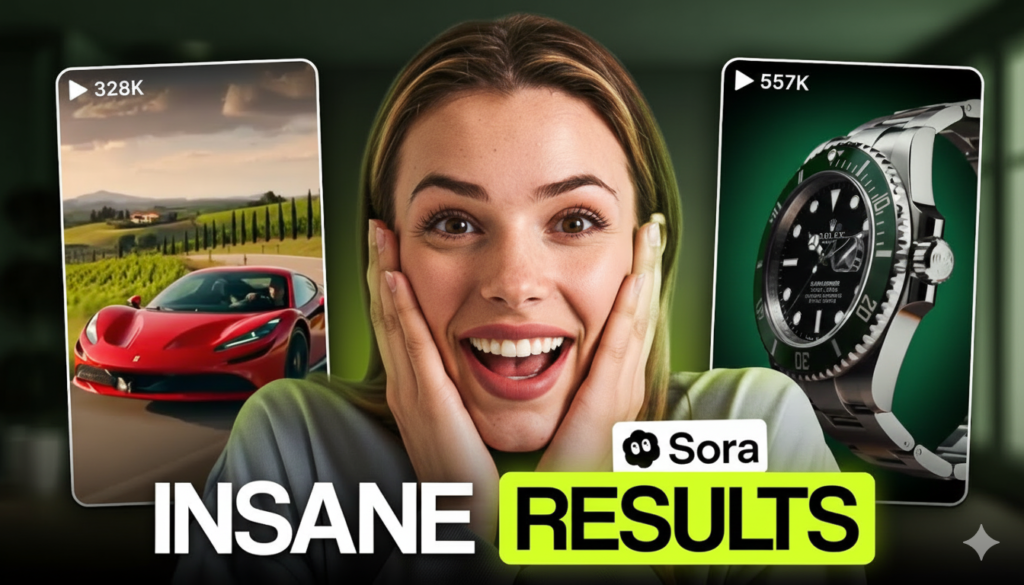
Sora 2 is actually OpenAI’s advanced AI video-generation model, designed for creating videos. It’s mainly focused on video and image generation. Sora 2 delivers highly realistic video results and offers features such as text-to-video and text-to-image. However, if you want to create “high-quality AI images” using Sora’s old instrument or ChatGPT’s image feature, then the guide below is for you.
 Join WhatsApp Channel
How to create AI images using Sora
Sora 2 is primarily a video and image generation model, meaning it is designed to create high-level videos and images. However, it doesn’t always offer a clear option for generating a still image. A feature like Sora (the old interface) or ChatGPT Images still yields better results.
Things for Sora Image Generation:
- ChatGPT Images / Sora Account: You must have an account on ChatGPT and Sora 2.
- Image Prompt: You must have a proper image prompt. You can either take it from ChatGPT or upload an image to ChatGPT and ask it to generate an image prompt.
- Correct aspect ratio & quality: When you submit an image prompt, you must specify the image and video ratios you want.
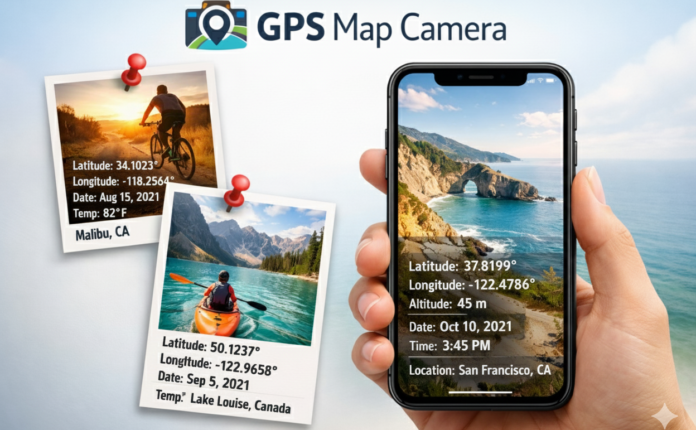
Read Also: How to Use the GPS Map Camera App on Android Full Guide
Steps To Generate AI Images
Step 1. Create a clear vision in your mind. First, think about what you want the image to be. A clear concept helps in achieving better results.
For example:
- Portrait in a fashion photographer style
- Futuristic landscape in a fictional location
- Documentary/Realistic photorealistic image
Step 2. Write a prompt in detail for generating an image. Create an image prompt. You need to include these in your image prompt. First, you add a Topic/Subject. Next, select a style for your image, like photographer, painter, or animator. In your image prompt, also focus on lighting, color, Quality, or resolution. Always remember, a more detailed prompt gives a better image.
Example Image Prompt
“A highly detailed, ultra-realistic [subject], captured in [environment/background], with soft natural lighting, sharp focus, and cinematic depth of field. Realistic textures, vibrant but natural colors, 8K resolution, professional photography style, dramatic composition, modern aesthetic, high contrast, clean background, no blur, no noise.”
Step 3. Select the instrument and settings. If you are using Sora 2 for video and image generation, the correct way to generate images is to use ChatGPT Images or Sora’s image generation interface. They choose text-to-image or image editing. Other options: Also select an aspect ratio with the prompt, such as 1:1 for the image.
Step 4. Increase the image resolution and quality. For a great image, consistently use a higher resolution (1024×1024 or 4K).
Step 5. Add Photographer Shots like “increasing light, blue eyes, background blur”. Include words like Color gradients, lighting, autofocus, and background detail in the prompt. Try different styles (e.g., surreal, cinematic, watercolor).
Summary
Sora 2 is primarily a video generation tool, so if you want to create images, ChatGPT Images, or Sora’s image generation interface is more suitable. Detailed prompts, accurate settings, and resolution make your AI images look professional. Get the best results with Remix and iteration.